
Before configuring your phones in FreePBX, it’s a good idea to whitelist your IP address to avoid being blocked by Fail2ban.
for installation and configuratoin just click on the below link.
FreePBX Installation and Configuration
You need to get the Public IP by user or ask them to visit https://www.whatismyip.com/ and provide IP address.
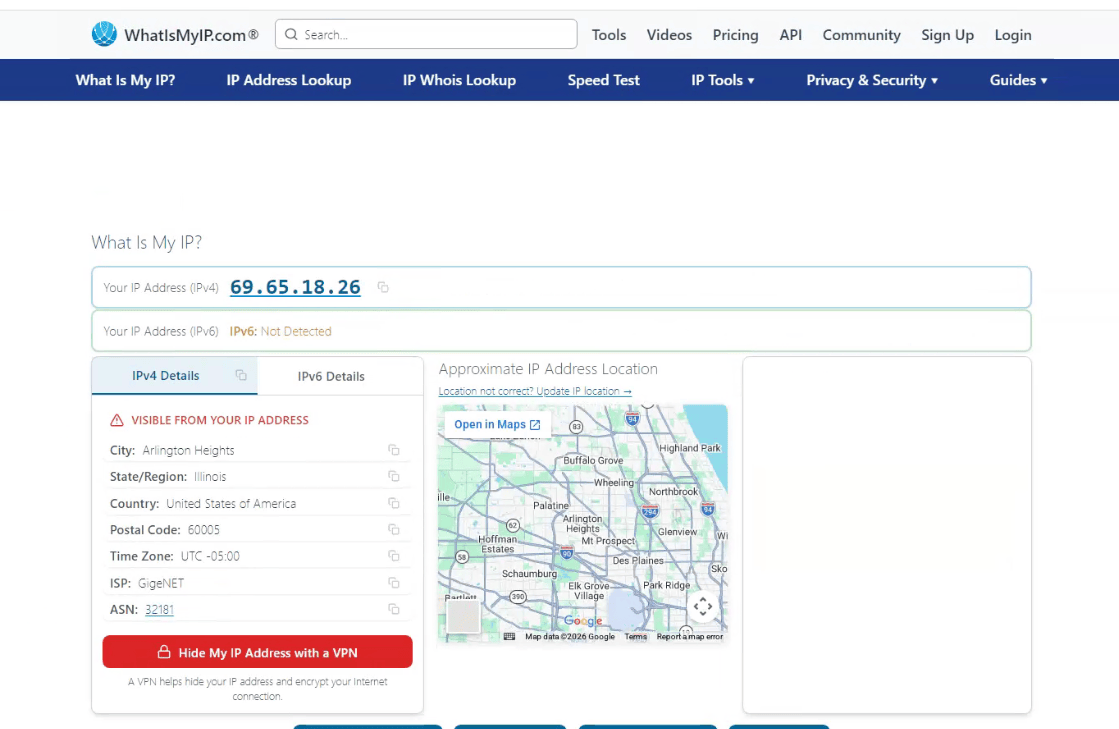
Whitelist a Public IP Address in a PBX Phone System:Step by step Guide
Follow below steps to Whitelist an IP
Login to FreePBX using Putty
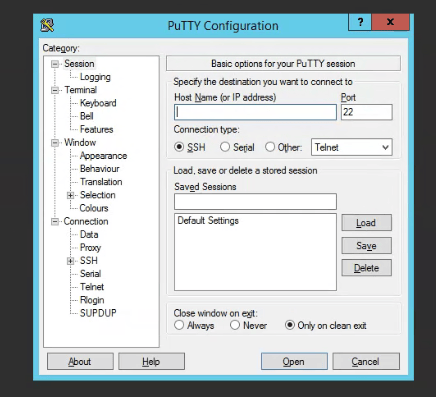
just login and then Run the below command to Whitelist it
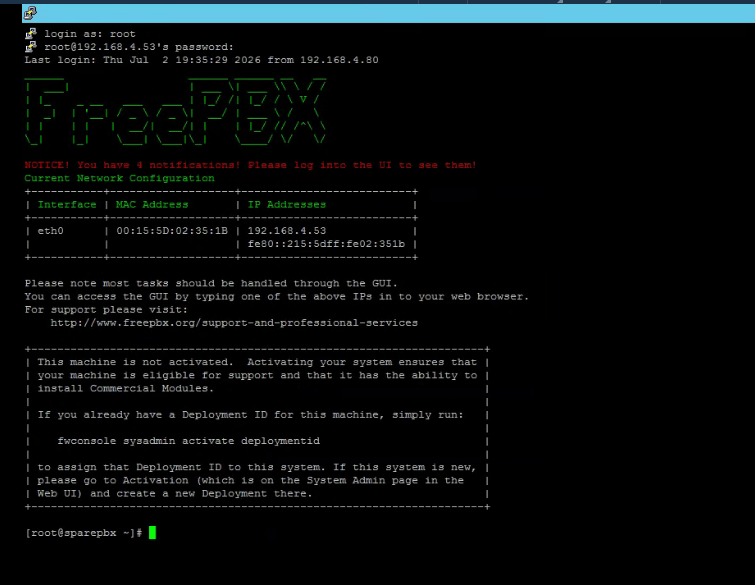
iptables -A INPUT -s *.*.*.*.*.*.*/16 -j ACCEPT
*.*.*.*.*. should be replacing with the IP address we got from user.you can get ip from whatismyip.com( https://www.whatismyip.com/ )
Then, run the below command to save changes
iptables-save > /etc/sysconfig/iptables
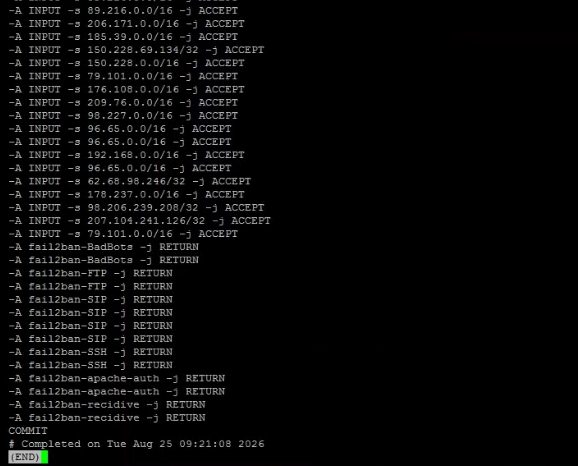
To view the IPtabes list to verify if IP has been added successfully
less /etc/sysconfig/iptables
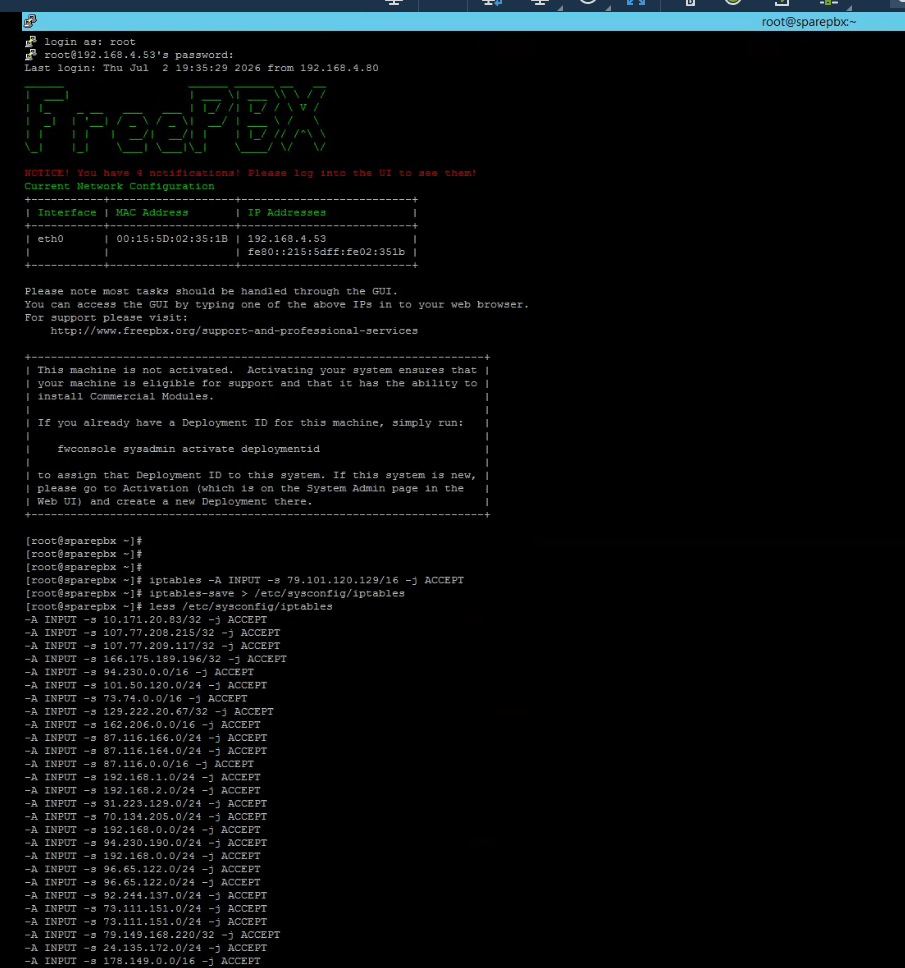
We can also use Asterisk console to view all extensions/registered accounts
asterisk -vr
sip show peers
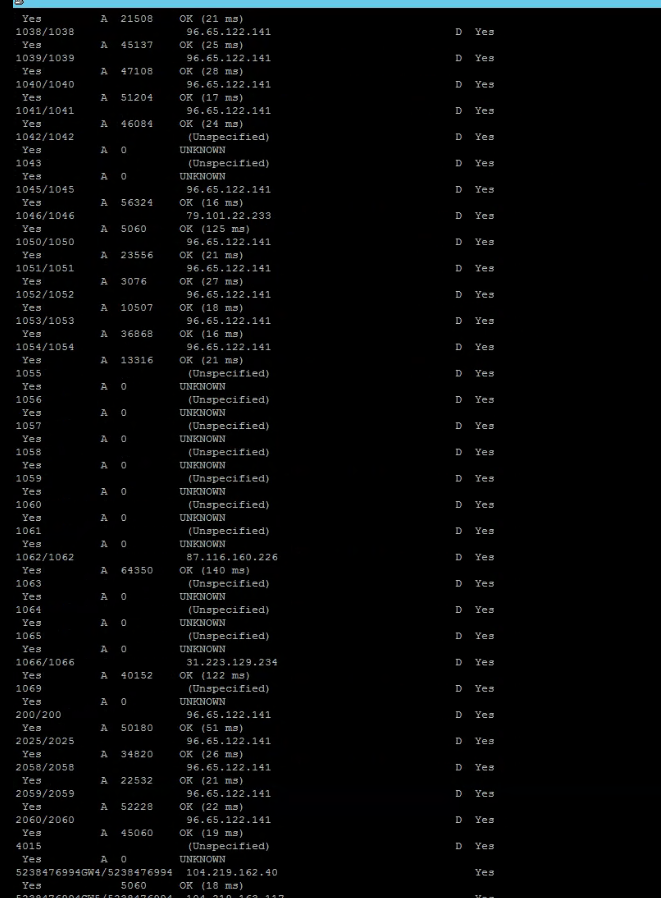
asterisk -vr— Opens the Asterisk command-line interface (CLI) in verbose mode, allowing you to view Asterisk activity and run commands for troubleshooting.sip show peers— Displays the configured SIP peers/extensions, along with information such as their IP address, port, status, and whether they are reachable.
Type exit to comes out from Asterisk Console or you can use ctrl+c to exit.
for 3CX installation and configuratoin just click on the below link.