
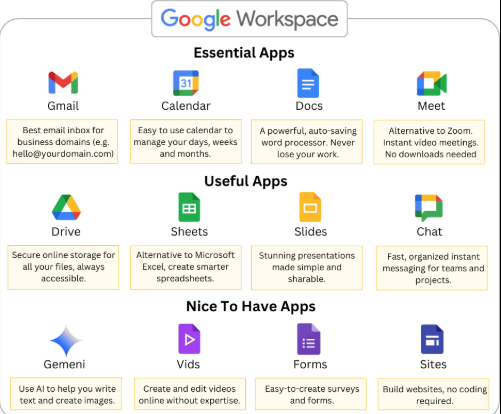
In today’s fast-paced digital world, mastering Google Workspace (formerly G Suite) is essential for maximizing productivity. Whether you’re a freelancer, small business owner, remote team leader, or corporate professional, these powerful tools—Gmail, Docs, Sheets, Drive, Calendar, Meet, and more can transform how you work.
AI Security Risks: BarracudaONE Cyber Resilience
Google Workspace Tips for Productivity
This comprehensive guide shares practical Google Workspace tips drawn from years of real-world use. I’ve streamlined my workflow, reduced email overload, collaborated seamlessly, and saved countless hours. If you’re searching for “Google Workspace productivity tips,” “best Gmail hacks,” “Google Sheets automation,” or “improve team collaboration with Google tools,” you’re in the right place.
Why Google Workspace Excels for Productivity
Google Workspace is more than just email and documents—it’s an integrated ecosystem. After switching fully in 2019, I cut my administrative time by nearly 40%. Real-time collaboration, cloud access, and smart AI features (like Gemini) make it unbeatable. Below are battle-tested tips, my personal experiences, and actionable suggestions.
1. Master Gmail for Inbox Zero and Smart Email Management
Gmail is the foundation of most workflows. I used to drown in emails; now I process them efficiently.
Key Tips:
- Use filters and labels to automatically sort incoming mail.
- Enable “Undo Send” and set it to 30 seconds.
- Create templates for repetitive responses (Settings → Advanced → Templates).
- Use priority inbox and snooze features.
- Integrate with Google Tasks for turning emails into actionable items.
My Experience: In 2020, during remote work transition, I implemented strict label systems (Client, Team, Finance, Follow-up). This reduced my daily email time from 2 hours to under 45 minutes. One filter alone saved me from missing critical client messages.
Suggestions: Schedule two focused email blocks daily. Turn off notifications. Review and archive weekly. Aim for Inbox Zero at least three times a week.
2. Supercharge Google Docs with Advanced Features
Google Docs is far more powerful than basic word processing.
Productivity Hacks:
- Use voice typing for faster drafting (Tools → Voice typing).
- Explore Explore pane for research and citations.
- Master keyboard shortcuts (e.g., Ctrl + Alt + M for comments).
- Create custom templates for reports, meeting notes, and proposals.
- Use @mentions and assignment features for team feedback.
My Experience: I once drafted a 50-page project proposal in Docs with real-time input from three team members. Version history saved us during a major revision crisis. Templates now save me 5-10 hours monthly.
Suggestions: Integrate with Google Keep for quick idea capture. Use add-ons like Grammarly or Lucidchart for enhanced functionality.
3. Unlock Google Sheets Power for Data Mastery
Sheets is my favorite tool for analytics and automation.
Top Tips:
- Learn essential formulas: VLOOKUP, QUERY, IMPORTRANGE, and ARRAYFORMULA.
- Use Data Validation and Conditional Formatting for clean dashboards.
- Create automated reports with Google Apps Script.
- Build pivot tables for quick insights.
- Link Sheets with Forms for seamless data collection.
My Experience: I built a freelance income tracker in Sheets that automatically categorizes expenses and predicts cash flow. This helped me identify savings opportunities worth thousands annually. During one client project, real-time shared Sheets replaced endless email threads.
Suggestions: Start with pre-built templates from the Template Gallery. Learn basic Apps Script—my first simple script automated monthly reports and saved hours.
4. Organize Files Like a Pro with Google Drive
A cluttered Drive kills productivity.
Best Practices:
- Create a logical folder structure (e.g., Clients → Projects → Archives).
- Use Starred items and Quick Access for frequent files.
- Set sharing permissions carefully (View, Comment, Edit).
- Enable offline access for travel or unreliable internet.
- Use Drive shortcuts to link files without duplication.
My Experience: After a chaotic 2021 where I lost track of versions, I standardized naming conventions (YYYY-MM-Project-Name). Searchability improved dramatically, and team onboarding became faster.
5. Optimize Google Calendar for Time Blocking and Focus
Calendar is your command center for time management.
Powerful Tips:
- Color-code events by category (Deep Work, Meetings, Personal).
- Use appointment slots for client booking.
- Set default reminders and buffer times between meetings.
- Share calendars selectively with team members.
- Integrate with Google Tasks and Keep.
My Experience: Implementing time blocking (90-minute focus sessions) increased my output significantly. I reclaimed evenings by protecting “No Meeting” blocks. One year, this habit helped me launch a side project successfully.
Suggestions: Review your calendar every Sunday. Use “Find a time” when scheduling. Try the “one-touch” rule: handle, delegate, or schedule immediately.
6. Leverage Google Meet for Effective Virtual Collaboration
Hybrid work makes strong video tools critical.
Tips for Better Meetings:
- Use live captions and recording features.
- Prepare shared Docs/Sheets before meetings.
- Use breakout rooms for larger teams.
- Enable noise cancellation and virtual backgrounds.
- Follow up with action items in Docs.
My Experience: Structured Meet sessions with shared agendas reduced meeting times by 30%. Recording important trainings created an internal knowledge base.
7. Automate Repetitive Tasks with Apps Script and Add-ons
Automation is where real time savings happen.
My Experience: I created a script that pulls data from Gmail into Sheets and generates reports. Another sends automated thank-you emails after client calls. These tools freed me for high-value work.
Suggestions: Start simple—explore the Script Editor. Use no-code add-ons first (e.g., Document Studio, Sheetgo).
8. Use Gemini AI Features for Smart Assistance
Google’s AI integration is a game-changer.
Practical Uses:
- Summarize long emails or documents.
- Generate drafts and ideas in Docs.
- Analyze data trends in Sheets.
- Get meeting insights in Meet.
My Experience: Gemini helped brainstorm content ideas and polish proposals faster. It’s like having a smart assistant always available.
9. Team Collaboration and Security Best Practices
For managers and teams:
- Use shared Drives for departments.
- Set up Workspace Groups for easy emailing.
- Regularly review permissions and activity logs.
- Train team on best practices.
My Experience: Proper setup prevented data leaks and improved team transparency.
10. Advanced Integration and Mobile Productivity
Connect Workspace with tools like Zapier, Slack, or Trello. Use the mobile apps for on-the-go productivity.
My Experience: Mobile access let me handle urgent tasks during travel without opening a laptop.
Additional Google Workspace Productivity Strategies
- Daily Routine: Start mornings with Calendar + Gmail review.
- Weekly Audit: Clean Drive and review storage.
- Learning Path: Dedicate time to new features via Google’s training resources.
- Common Pitfalls to Avoid: Over-sharing files, ignoring updates, and poor folder hygiene.
My Overall Results: Since fully adopting these tips, I’ve doubled project throughput, reduced stress, and maintained better work-life balance. Google Workspace became the backbone of my productivity system.
Conclusion: Start Implementing Today
Mastering Google Workspace tips for productivity delivers compounding returns. Pick 2-3 tips from this guide and implement them this week. Track your time savings and adjust as needed.
What’s your favorite Google Workspace feature or biggest productivity struggle? Share in the comments—I reply to readers and often share custom templates.
2 thoughts on “Google Workspace Tips for Productivity”