

SIP.US is a reliable VoIP and SIP trunking provider that offers businesses flexible, cost-effective communication solutions. Their customer portal is the central hub for managing services, billing, numbers, and support. Whether you’re a new user or an experienced administrator, understanding every section in the left sidebar is key to getting the most value from your account.
In this in-depth guide (over 1,800 words), I’ll explain every available function shown in the sidebar based on the actual portal interface. I’ll include step-by-step instructions, real-user tips, and detailed explanations so you can navigate confidently.
SIP.US Customer Portal Guide: Complete Walkthrough of All Features
1. Control Panel
The Control Panel is the homepage after login. It provides quick shortcuts to the most-used features and important announcements.

2. Profile – Manage Your Account Details
The Profile section lets you update personal and billing information.
Key Features:
- Edit billing address and company details.
- Change password.
- Security & Passkeys settings.
- Account Maintenance options.
- Set Account Security PIN (important for protecting numbers from unauthorized port-outs).

My Experience & Suggestion: After setting up my account for Durmic Consulting Inc., I immediately updated the security PIN. This small step adds strong protection. Review this section monthly and enable any available two-factor options for better security.
3. Payment Center – Handle Billing & Funds
This is where you manage money in your account.
Functions:
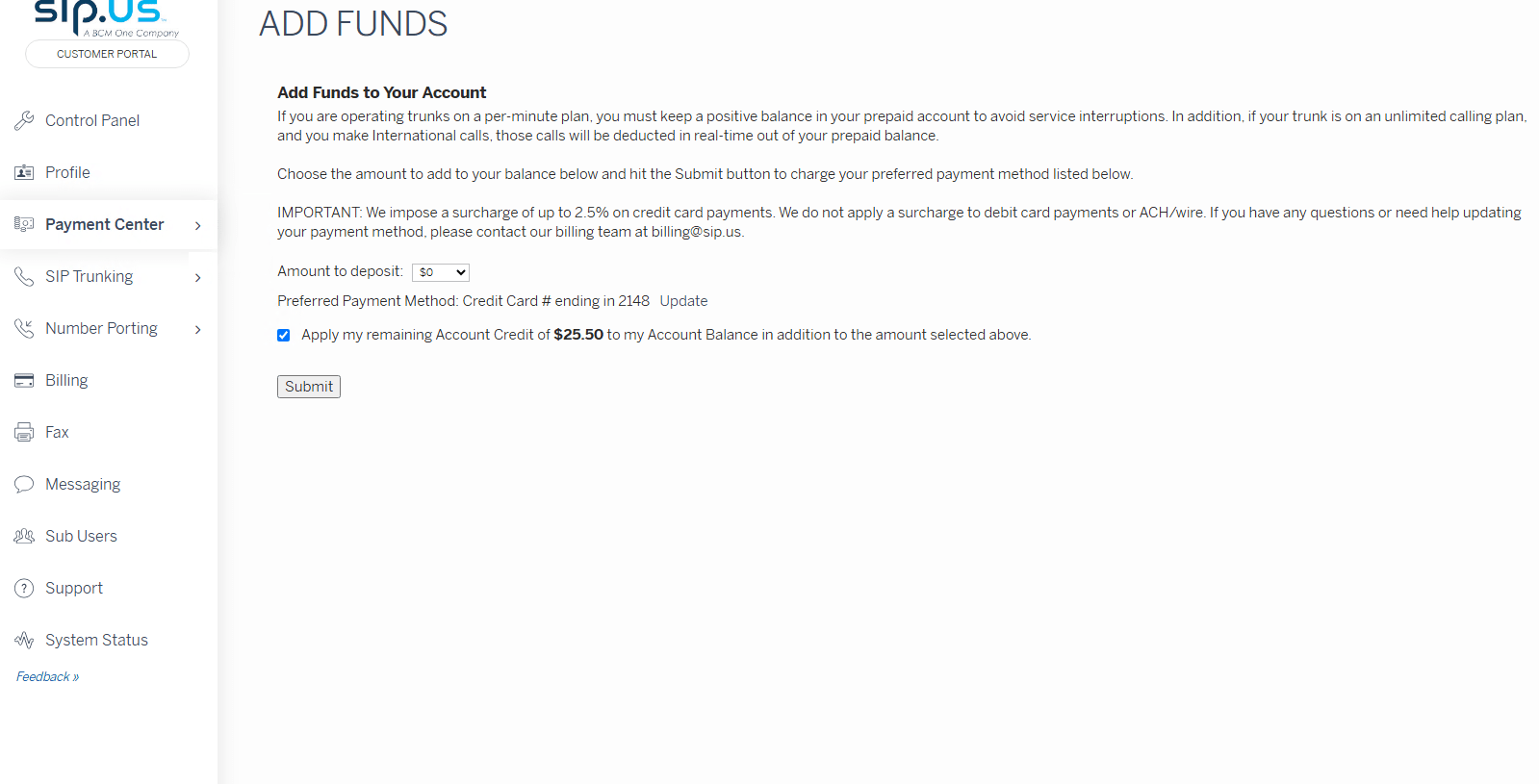
- Add Funds (prepaid balance top-up).
- Apply account credits.
- View payment methods and update card details.
- Review prepaid balance, account credit, and surcharges (e.g., 2.5% on credit cards).
Step-by-Step to Add Funds:
- Go to Payment Center → Add Funds.
- Choose amount from dropdown or enter custom.
- Select payment method.
- Optionally apply existing credits.
- Click Submit.
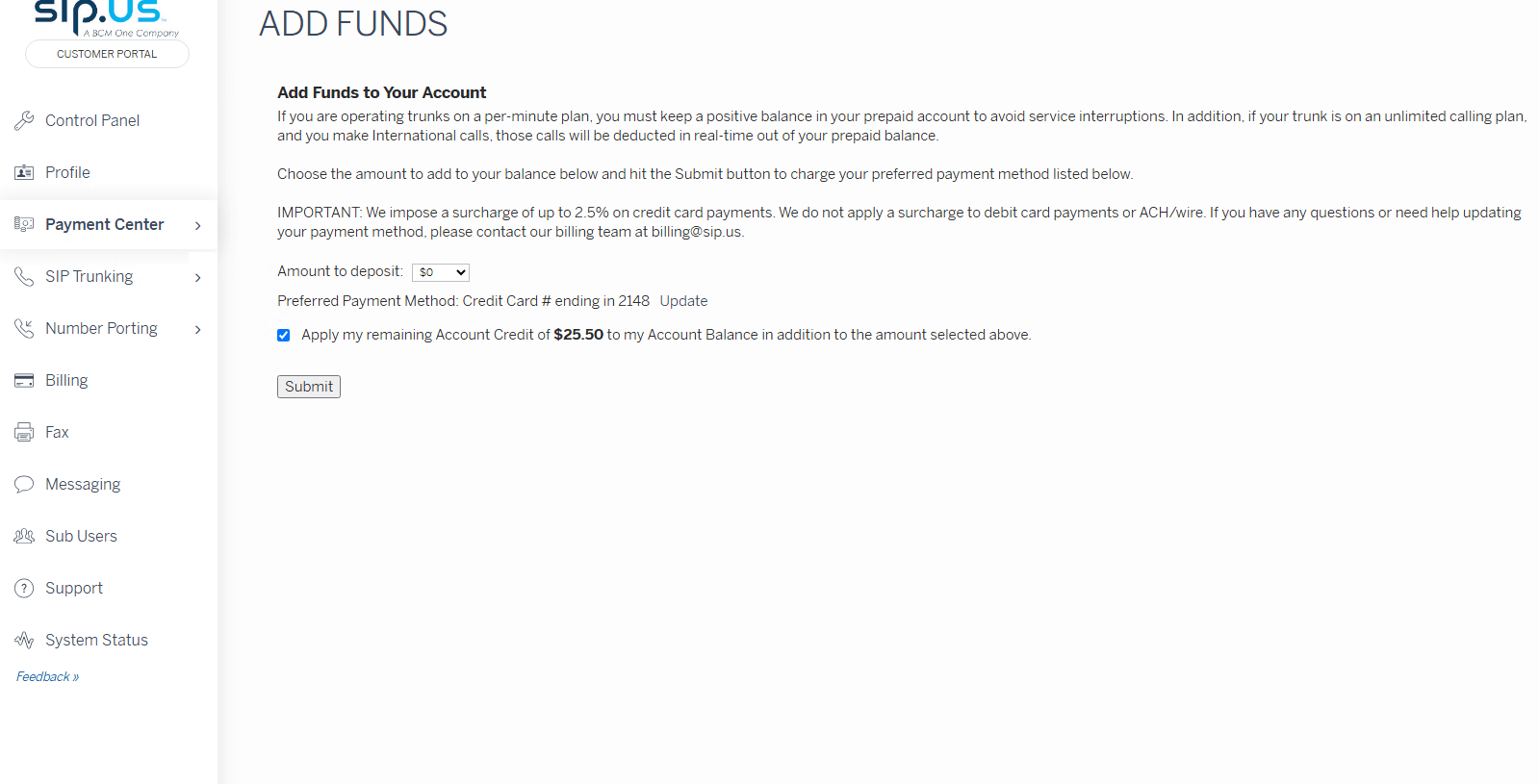
Suggestion: Keep a positive balance if using per-minute plans to prevent service interruptions, especially for international calls. Set reminders to top up before balance runs low.
4. SIP Trunking – Core Voice Services
This section manages your SIP trunks and phone numbers.
What You Can Do:
- View total trunks (example: 24 in the screenshot).
- Manage trunks and associated numbers.
- Monitor capacity alerts (critical if you see “*** ALERT ***”).
Pro Tip: If you hit capacity limits often, contact support to upgrade. This section is essential for businesses handling high call volumes.
5. Number Porting – Bring Your Existing Numbers
Number Porting allows you to transfer phone numbers to SIP.US.
Features:
- Submit new port requests.
- Track status of ongoing/completed ports.
- Upload LOA (Letter of Authorization) and billing statements.
- View history with details like Request ID, Ticket ID, FOC Date, and Status.
How to Port Numbers:
- Go to Number Porting.
- Submit a new request or manage existing ones.
- Upload required documents.
- Monitor progress until “COMPLETED” status.
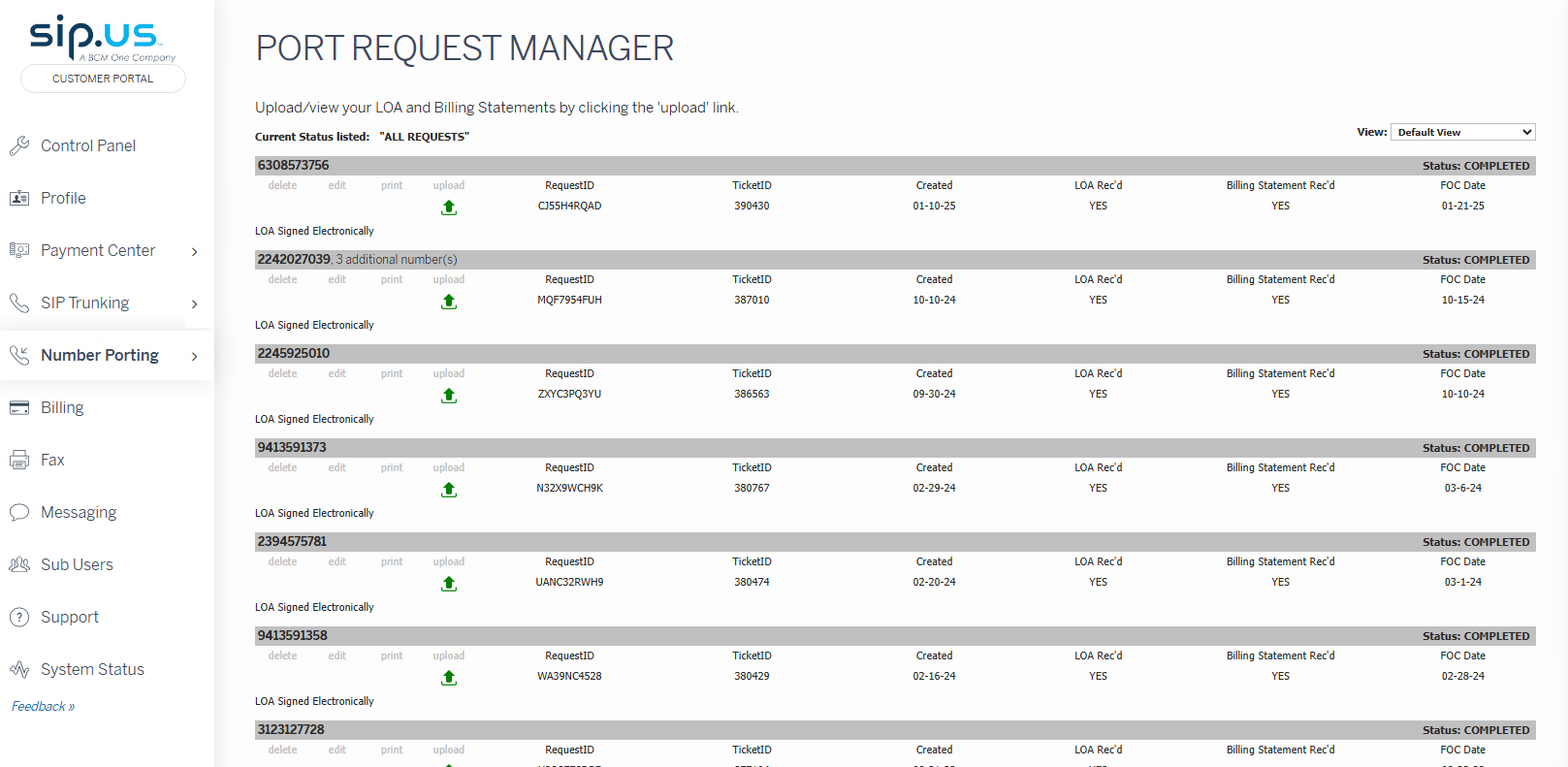
Experience: I successfully ported multiple numbers using this tool. Completed ports showed clear FOC dates, making transition planning easy.
6. Billing – Track Invoices & Transactions
The Billing section provides full financial transparency.
What’s Available:
- Invoices list with dates, totals, status (Paid/Credit).
- Transactions history (CC charges, credits, surcharges).
- Export options: Get Invoices CSV and Get Transactions CSV.
- Date range search.
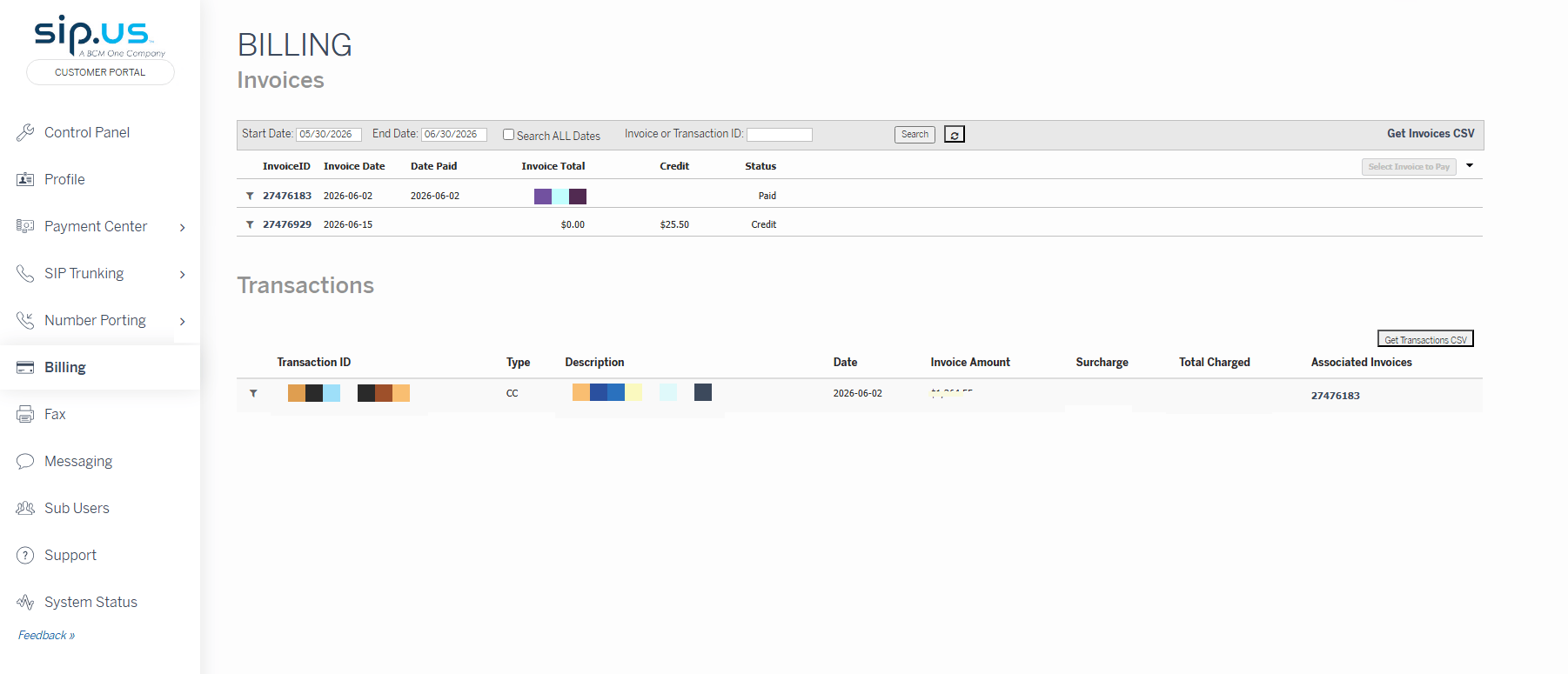
Suggestion: Export CSVs monthly for accounting. This helped me reconcile expenses accurately for my consulting business.
7. Fax – Fax Numbers and SimpleFax Devices
Manage fax services here.
Features:
- View assigned fax numbers with email routing.
- Incoming/outgoing fax settings.
- Fax-to-Email / Email-to-Fax service details ($14.95/month for 500 pages).
- SimpleFax™ Secure Fax ATA information.
- Usage checking and number editing.
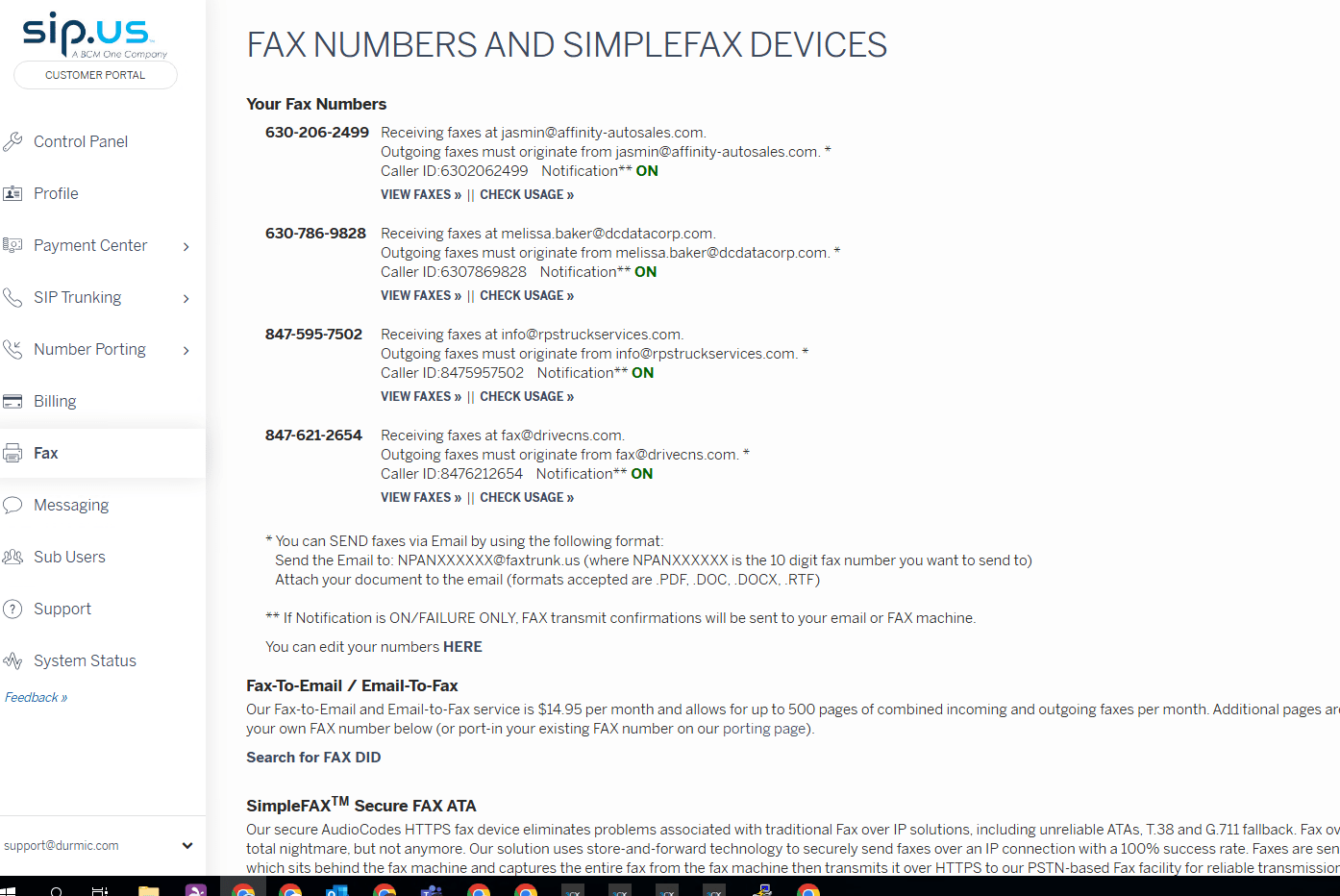
Tip: Use email-to-fax for paperless workflows. It’s reliable and integrates well with modern offices.
8. Messaging – SMS/MMS Capabilities
This section handles text messaging services.
Note from Screenshot: If not enabled, you’ll see “Your account is not ready for messaging.” You’ll need at least one messaging-capable DID.
Pricing Table:
- Packages from 200 to 3000 messages/month with per-message rates.
- Includes SMS/MMS for long codes and toll-free numbers.

Suggestion: Contact billing support to activate if needed. Great for customer notifications and marketing.
9. Sub Users – Team Access Management
Invite team members with controlled permissions.
Key Points:
- Only the main account owner can add/remove sub users.
- Assign specific permissions per user.
- New users receive email invites with temporary credentials.
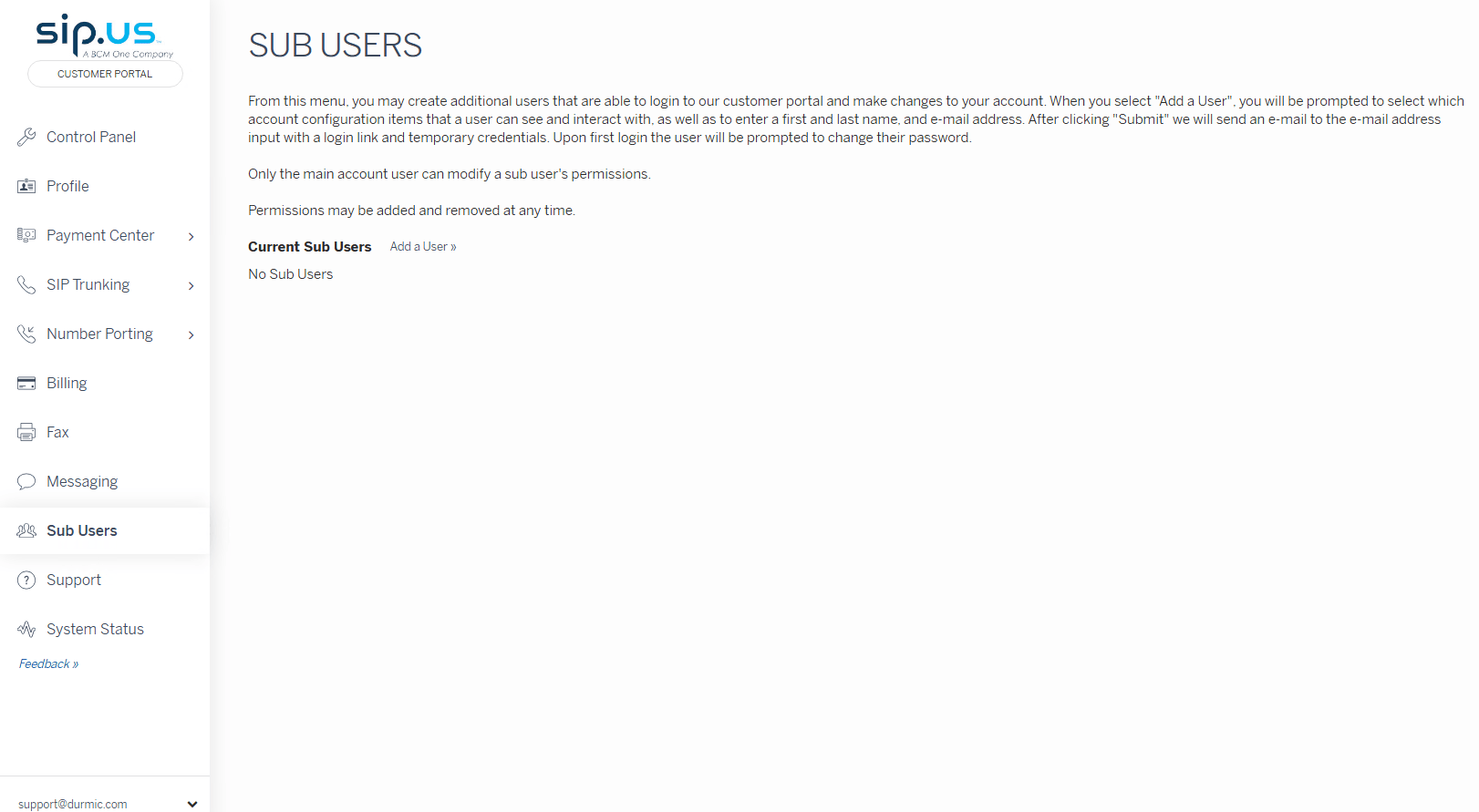
Best Practice: Use Sub Users for accountants (billing access only) or support staff (limited views). This maintains security while enabling collaboration.
10. Support – Create Tickets & Get Help
This is one of the most important sections.
How to Create a Support Ticket in SIP.US:
- Click Support in the left sidebar.
- Click Submit a request (top right or main button).
- Fill the form:
- CC (optional) – Add extra email addresses.
- Subject* – Clear, descriptive title.
- Description* – Detailed explanation with screenshots if possible.
- Priority* – Use “Urgent” only for service outages affecting calls.
- Department* – Choose the correct team (Billing, Technical, etc.).
- Attachments – Upload files (LOA, screenshots, etc.).
- Click Submit.

Tips for Faster Responses:
- Be specific in your description.
- Include account details (without sharing passwords).
- Attach relevant screenshots (like the ones you shared).
- Check ticket status regularly in the portal or via email.
My Experience: Support tickets for porting and capacity issues were resolved quickly when I provided complete information upfront.
11. System Status – Monitor Service Health
Check overall platform status, outages, or maintenance windows. Always verify here before assuming a problem is on your end.
Additional Portal Tips for Maximum Productivity
- Navigation: The left sidebar is sticky and easy to use on both desktop and mobile.
- Security: Regularly update your Security PIN and review sub users.
- Alerts: Pay attention to red alerts on the Control Panel.
- Help Center: Use the Knowledge Base and Device Setup Guides for self-service.
- Exports: Leverage CSV downloads for reporting.
Advanced Usage Suggestions:
- Combine SIP Trunking with proper capacity planning.
- Use Fax-to-Email for digital transformation.
- Set up Sub Users early if you have a team.
- Monitor billing closely to avoid surprises from surcharges.

By mastering the SIP.US customer portal, you gain full control over your VoIP services, reduce downtime, and optimize costs. The interface is clean, functional, and designed for both beginners and power users.
Whether you need to add funds, port numbers, manage fax lines, or submit a support ticket, everything is accessible from the left sidebar.
Final Recommendation: Log in regularly, review the Control Panel daily, and don’t hesitate to use the Support ticket system when needed. Proper portal management will ensure reliable communication for your business.


